cmd+FOR iPAD
Meet Cmd+/Hello, canvas
Interactive preview
A canvas, not a slideshow. Make yourself at home.
01 — Hello, canvas 1000 × 660
✳ A LITTLE MORE CONTROL

Your canvas.
Closer to hand.

Figma on iPad, with your favourite
controls right where you need them.

An iPad app in the making.
Go on. Move something.
02 — The playground 1000 × 660
YOUR IDEAS GO HERE

Make a little
space.

Turn the ring. Push the joystick.
Undo your second thoughts.

ALL YOURS
to play with✳
A local playground. Your Figma files stay yours.
03 — Made for iPad 1000 × 660
MEET YOUR OTHER HAND

Less reaching.
More creating.

Cmd+ brings a floating touch controller to Figma on iPad. Keep your Pencil on the canvas and your everyday controls close.

Turn to zoom.
A tactile ring for getting closer.
Push to pan.
A joystick to find your way around.
Make it yours.
Four profiles. Six shortcuts each.
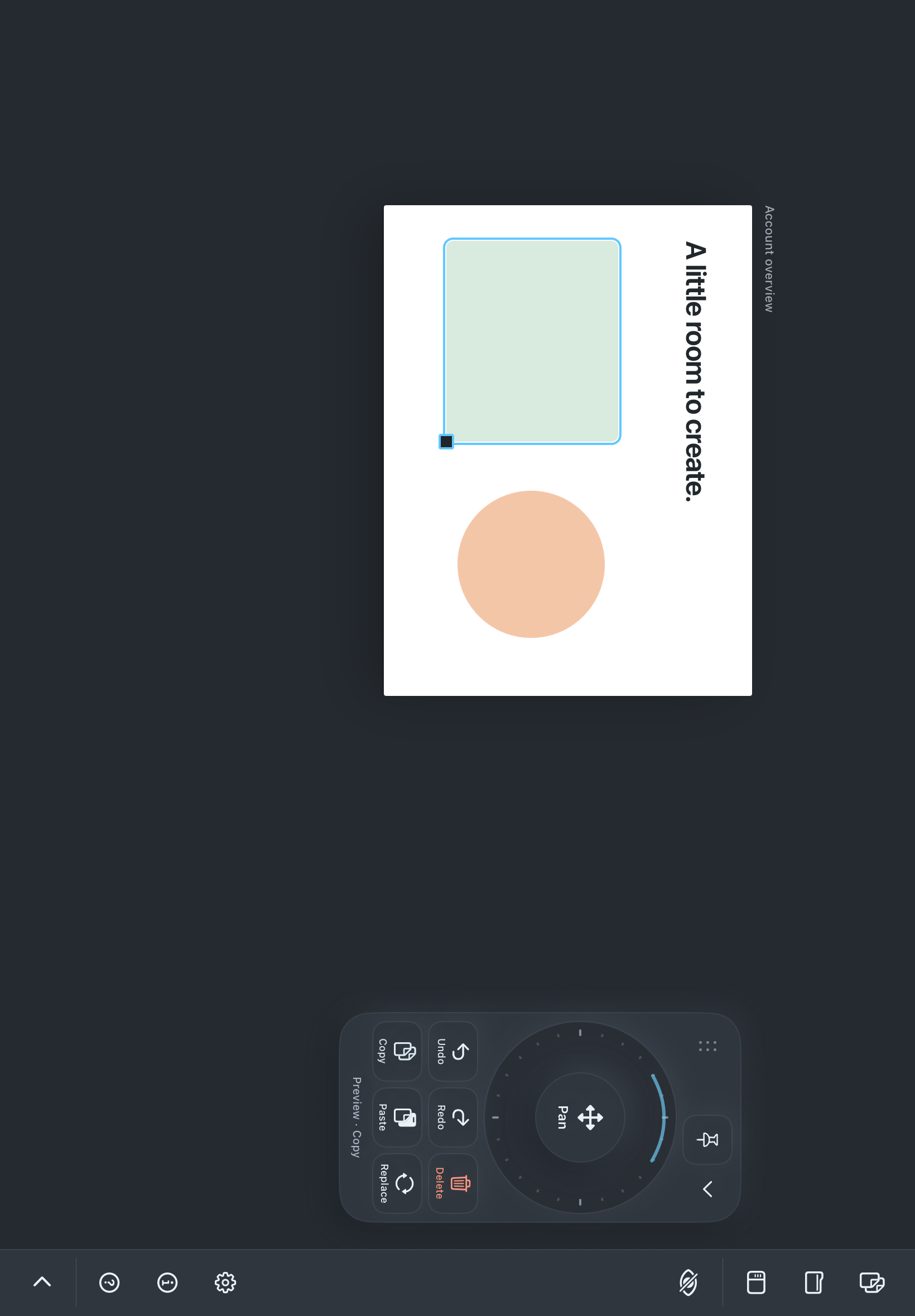
Genuine Cmd+ iPad development preview with the floating controller beside a practice canvas
A real capture from the iPad development preview.
A clear canvas. A little more possibility.Cmd+ · DEVELOPMENT PREVIEW
Try a mode
↗Your other hand.Starts open. Stays open.
Minimise whenever you like.
Design
Click to select · Drag to move · space to pan
SelectVPanH / Space + dragDraw a rectangleRDraw a circleOAdd textTUndo / redo⌘ Z / ⌘ ⇧ ZCopy / paste⌘ C / ⌘ VDuplicate⌘ DDelete selection⌫Fit artboardShift 1Move object↑ ↓ ← →Move by 10Shift + arrow
A LITTLE MORE CONTROL

Meet Cmd+.

Your canvas. Closer to hand.

Cmd+ is a native iPad development preview that brings a floating touch controller alongside Figma’s web editor. A zoom ring, pan joystick and six customisable shortcut buttons keep everyday actions within reach.

PlatformiPad · Development previewOn this websiteA local, interactive canvas demoAvailabilityNo public download yet

On the workbench

Development snapshot · 1 November 2026

Available to try · profiles and shortcuts

Design, Draw, Motion and Dev each keep six assignments and their own accent. Search 212 built-in commands, add custom key combinations, and save labels and layouts. Unsupported actions stay visibly unavailable in this browser demo.

Implemented · stays open until you minimise

The controller starts open with six saved controls. There is no idle timeout. Use expand and minimise, or View all to browse the full catalogue.

In validation · follows Figma’s mode

The app is being updated to follow the selected mode in Figma’s toolbar. The puck shows its current profile as a status label. If the toolbar is hidden, it keeps the last confirmed mode. Try the simulated editor mode bar on this page.

In flight · iPad testing and TestFlight

Simulator validation and release preparation are underway. TestFlight distribution is not yet confirmed. Physical-device compatibility, clipboard input and older-iPad stability remain under validation. No public download is available yet.

What’s ready, and what’s still being tested?

The practice canvas supports selection, move, resize, pan, zoom and edit actions. Live Figma controls send keyboard and trackpad-style input; Figma can ignore that input. Full Pencil, clipboard and physical-device compatibility are still being validated. This website demonstrates the controller with local shapes and does not connect to your Figma account.

Each profile keeps its own layout. Every shortcut is available in every profile.

Six controller buttons · slot 1

Tap a slot, then choose its command.


Use Cmd, Option, Ctrl or Shift with a key.

Icon and label follow the assigned command.